

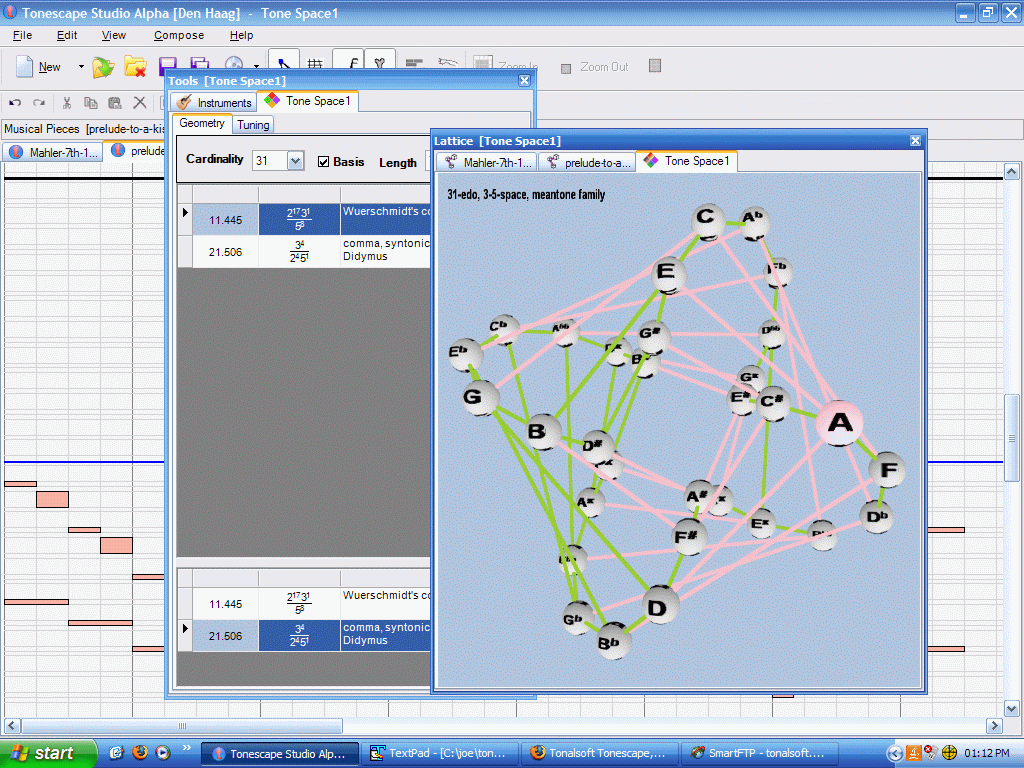
Tonescape was created 2003 to 2007 specifically for Windows XP. Microsoft has kept updating subsequent versions of Windows, and as a result Tonescape may or may not install natively in Windows 10 or 11. Also, many users run other operating systems, specifically Linux and MacOS. Virtual machines have been created which now enable Tonescape to run on any of these systems EXCEPT APPLE SILICON MACBOOKS (M-series chips). This page is specifically for users who run Linux.
Install QEMU first (instructions below), then
BE SURE TO HAVE AT LEAST 17 GB OF FREE DISK SPACE AVAILABLE BEFORE DOWNLOADING THE VM !
CLICK HERE TO DOWNLOAD TONESCAPE®
|
This Tonescape VM is currently running perfectly on Manjaro Linux (kernel 6.19), in QEMU 10.2.0. It should run on any modern Linux distribution.
Linux users must have QEMU installed to run the virtual machine. Most major Linux distributions will offer QEMU in their package manager. Instructions for installing QEMU for the most popular Linux distros:
Click the link in the box, under the first paragraph, to download the 16 GB VM image file, which is a clone of my HP Mini 1000 hard-drive running Windows XP, with Tonescape installed. Best practice is to save this .img file, the Tonescape icon, and the bash script all in the same directory. BE SURE TO HAVE AT LEAST 17 GB OF FREE DISK SPACE AVAILABLE BEFORE DOWNLOADING!
Download this bash script which sets up QEMU properly to run the Tonescape VM, and allows you to save Tonescape files from insdie the VM to a folder on your Linux desktop. Be sure to make the script executable: Open a terminal, go into the directory where you downloaded the script, and run this command: $ chmod +x tonescape_shared-folders_max-ram_from-gui.sh
To have a launchable icon on your desktop:
[Desktop Entry]
Version=1.0
Type=Application
Name=Tonescape
Comment=Tonescape in a Windows XP virtual machine
Exec=[path to your bash script]/tonescape_shared-folders_max-ram_from-gui.sh
Icon=[path to your Tonescape icon]/Tonescape.ico
Path=[path to your Tonescape VM directory]
Terminal=true
StartupNotify=false
When everything is set up:
To send any files to your Linux desktop folder, simply copy them to the Z: drive in the Windows XP VM.
If you prefer to run the VM from the command-line in a Terminal, download this file, run chmod +x to make it executable, and navigate to it in your Terminal and run it. If you want to save files to the shared folder, watch the Terminal the first time you run the VM and be sure to enter your Linux password when requested.
For an overview of Tonescape, visit this page, and be sure to read the tutorials to learn how to use it.
The tonalsoft.com website is almost entirely the work of one person: me, Joe Monzo. Please reward me for my knowledge and effort by choosing your preferred level of financial support. Thank you.